
GapAlgo Strategy Builder
Build your own GapAlgo setup, add it to TradingView, then replay past sessions to see how it behaves.
1What do you want to trade?
Pick a style.
2How picky should it be?
The number on each is about how many signals it takes, for the symbol and timeframe in your setup.
3Where do you take profit?
The stop is the same on all three. Only how far the targets sit changes.
Advanced settings
"Avg bar" is how far this symbol normally moves in one candle, so the same setting fits SPY, QQQ or anything else.
Add it to TradingView
About a minute. Step 2 is only needed the first time.
1Build and copy your code
Pick your options above, name your setup and click Build my setup. Then click Copy code and open TradingView. Saved setups can be copied any time from My setups.
2Add the indicator first time only
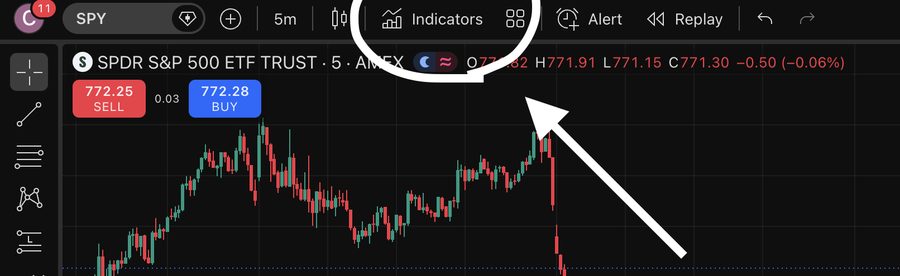
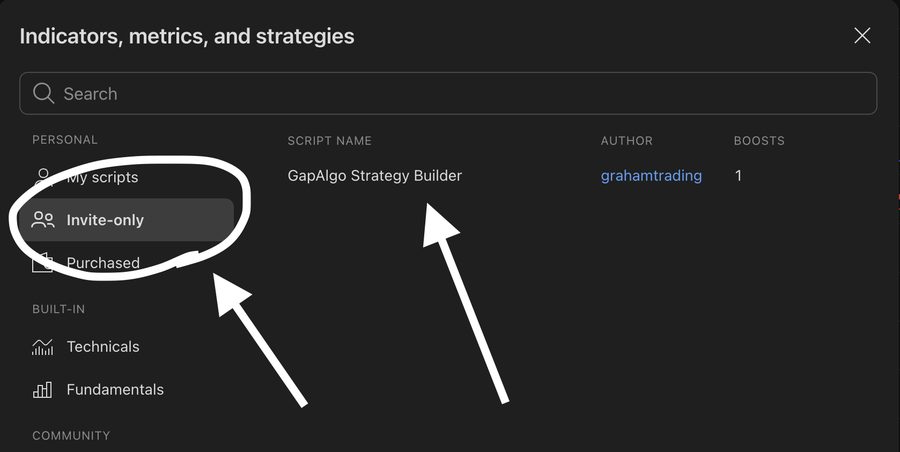
On your chart, click Indicators at the top, open the Invite-only tab and click GapAlgo Strategy Builder. Click the star next to it so it is easy to find next time.
3Open its settings
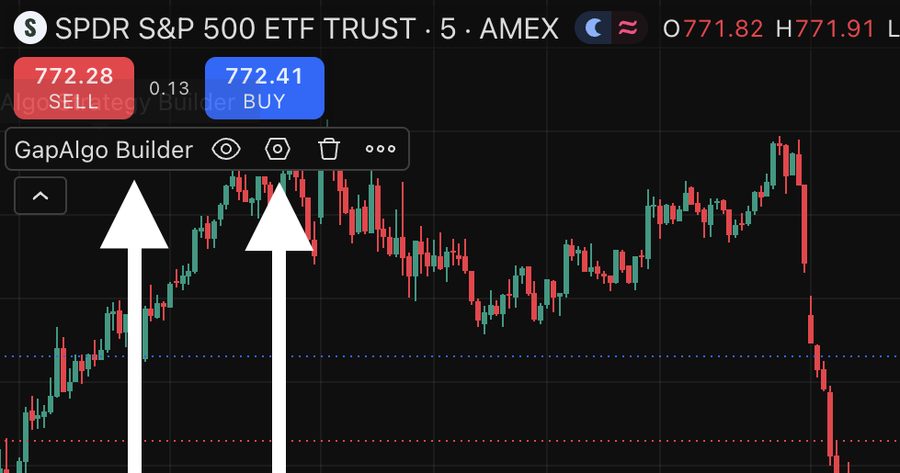
At the top left of your chart, hover over GapAlgo Builder and click the gear icon.
4Paste your code
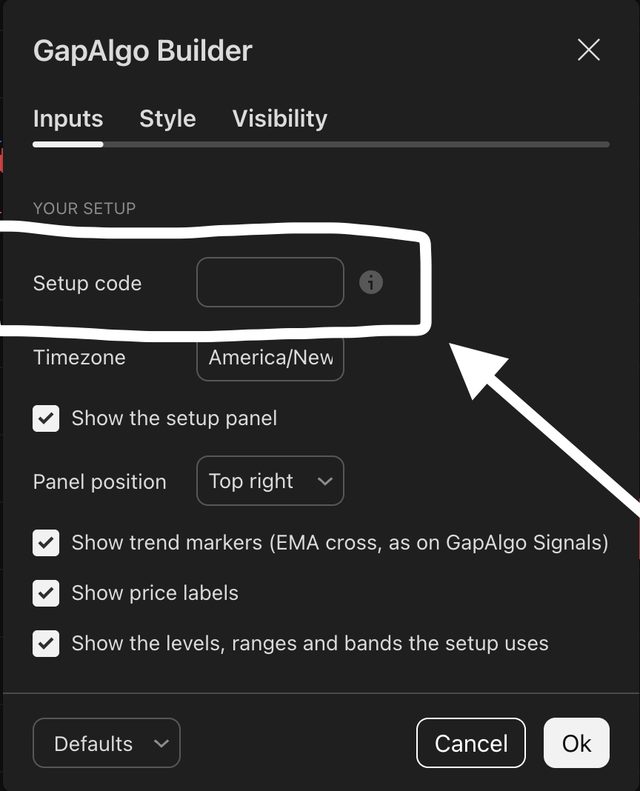
Paste it into the Setup code box and press OK. The panel in the corner of your chart now shows your setup's name.
5Get alerts optional
Click Alert on the top toolbar (the alarm clock). Set the condition to GapAlgo Builder, pick Any alert() function call and click Create. You get every BUY, SELL, target and stop for this setup, with its name in the message, in the TradingView app or by email. It keeps running with your chart closed.
An alert keeps the code it was made with. If you paste a new code, delete the old alert and make a new one.
Not under Invite-only? Access goes to the TradingView username on your Whop account and can take a few minutes. Check the username is spelled exactly right, then refresh TradingView.
Next: replay it, or run more than one setup
- Replay: click Replay on the top toolbar (the rewind icon), pick a day in the past and press play to watch your setup trade it bar by bar.
- Change it later: build a new setup here and paste the new code into the same box. Want two at once? Add the indicator a second time, give it a different code, and make an alert for each one.